
Presets for emojis, stickers and chat
GIF Compressor for Discord
Discord says your file is too large when you upload an emoji or send a GIF? Pick a Discord preset in GIF Compressor for Discord and your GIF is compressed to fit that size limit.
Choose a GIFFeatures
Discord GIF compressor features
Discord presets
One click picks the size limit for emojis, stickers or chat.
Balances size and quality
Dimensions and color count are adjusted automatically to stay under the target size while keeping as much detail as possible.
Limits reference table
This page lists the dimension and file size requirements for common Discord uses.
Processed locally
Your files are processed in your browser and never uploaded.
How it works
How to compress a GIF for Discord
Three quick steps to get under the upload limit.
- 1
Upload your GIF
Drag in or choose the GIF that is over the limit.
- 2
Pick a preset
Choose Emoji (256KB), Sticker (512KB) or Chat (10MB).
- 3
Compress and download
The tool compresses the GIF automatically. Download it and upload it to Discord.
Real results
See GIF compression for Discord in action
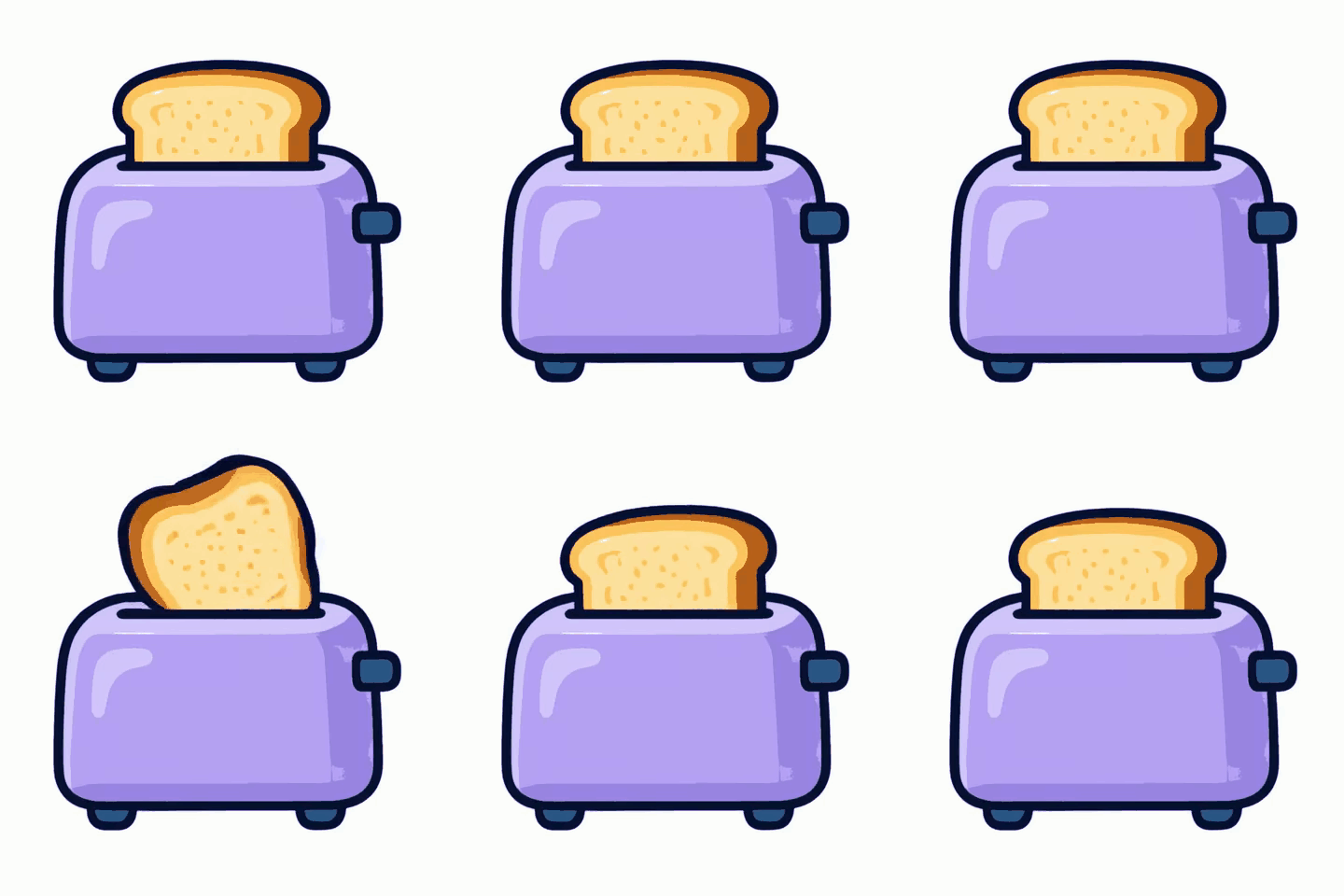
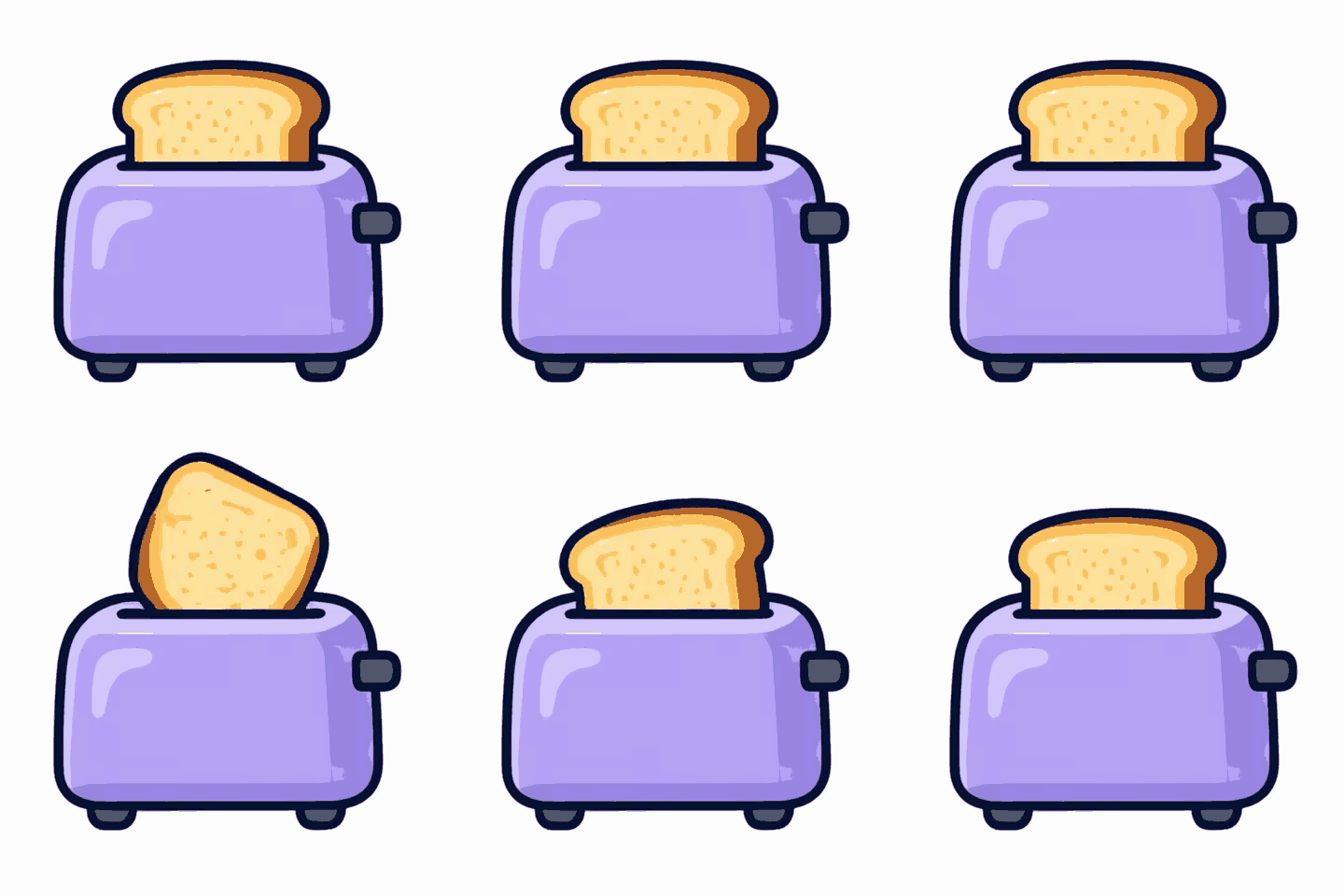
Much smaller file, same size
Fewer colours and frames shrink the file while the width, height and loop stay the same. Both GIFs below are 480 × 480 and are real outputs.
- Width and height stay exactly the same.
- Fewer colours and frames do most of the saving.
- Compare the preview before you download.
Ready for emoji
Discord emoji must be under 256 KB. Compress to 128 × 128 and a sticker-style GIF fits easily with room to spare.
- Discord emoji must be under 256 KB.
- Small, simple stickers compress the most.
- For bigger GIFs, the free upload limit is 10 MB.
Hard to tell apart
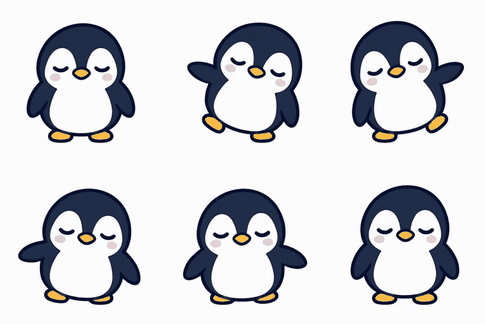
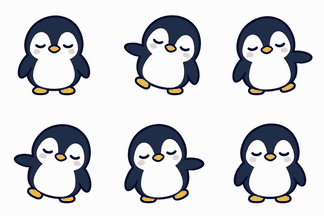
At normal viewing size the compressed GIF looks almost the same as the original, even zoomed in on details.
- Left: original. Right: compressed.
- Simple colours lose almost nothing.
- Gradients and photos may show slight banding.
Pick a quality level
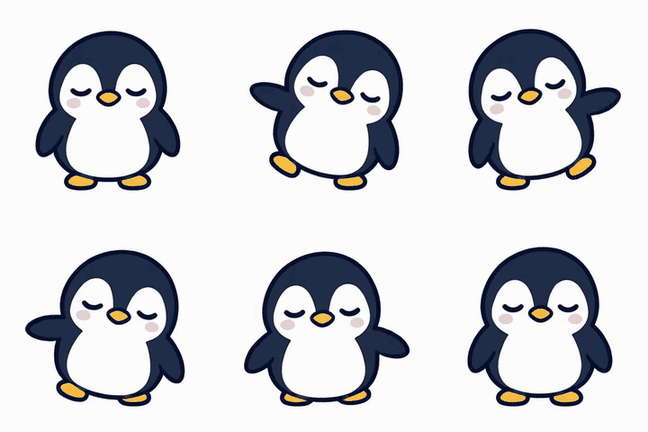
The quality slider trades sharpness for file size. Here the same 240 px penguin is compressed at 80%, 50% and 20%.
- 80%: 216 px, 208 colours, every frame kept — 436 KB.
- 50%: 162 px, 136 colours, every 2nd frame — 140 KB.
- 20%: 108 px, 64 colours, every 3rd frame — 45 KB.
Reference
Common Discord limits
| Use | File size limit | Suggested dimensions | Preset |
|---|---|---|---|
| Custom emoji | 256KB | 128×128 | 256KB |
| Sticker | 512KB | 320×320 | 512KB |
| Chat upload (free) | 10MB | Any | 10MB |
| Chat upload (Nitro) | Higher, depends on your plan | Any | Usually not needed |
| Animated avatar | Requires Nitro | 128×128 or larger, square | Custom |
| Animated server icon | Requires Nitro or server boosts | 512×512 | Custom |
Discord changes its limits from time to time. Always go by the message Discord shows when you upload.
Tips
Why isn't my emoji animating?
Over 256KB fails to upload
Choose the 256KB preset first. The tool shrinks the dimensions and reduces the number of colors.
Use a square
Emojis work best at 1:1. Crop to a square before compressing, for example with Crop GIF.
Animated emojis need Nitro
Without Nitro, animated emojis don't animate when used in other servers. That has nothing to do with file size.
Frequently asked questions
Will a GIF under 256KB look blurry?
The tool first scales down to 128×128 and reduces the colors. If the GIF has a lot of frames, quality drops more noticeably, so shorten it with Trim GIF first and then compress.
Is it still animated after compressing?
Yes. The export is still an animated GIF.
Why are Discord's limits different from what I read online?
Discord changes its upload limits, and different subscriptions have different limits. Go by the message you see when you upload to Discord.
Is it free?
Yes, the Discord GIF compressor is free to use.