
Captions with fonts, outlines and timing
Add Text to GIF
Want to caption a meme or a funny GIF? Add Text to GIF puts text on top of your animation. Change the font, color and outline, and choose which frame the text appears on and which frame it disappears.
Choose a GIF
Features
Add text to GIF features
Multiple text layers
Add as many text layers as you need, each with its own settings.
Text styles
Font, size, color, background color, outline and shadow.
Drag to position
Drag text directly on the preview canvas and place it anywhere.
Start and end frames
Show text for the whole GIF, or only on the frames you choose.
Live preview
See every change on the canvas right away.
Processed locally
Your files are processed in your browser and never uploaded.
How it works
How to add text to a GIF
Three quick steps to captions, memes and labels.
- 1
Upload your GIF
Drag your animated GIF onto the upload area.
- 2
Type and style your text
Enter your text and set the font, size, color and position.
- 3
Create and download
Set the start and end frames, check the result, then create and download your GIF.
Real results
See how text transforms a GIF
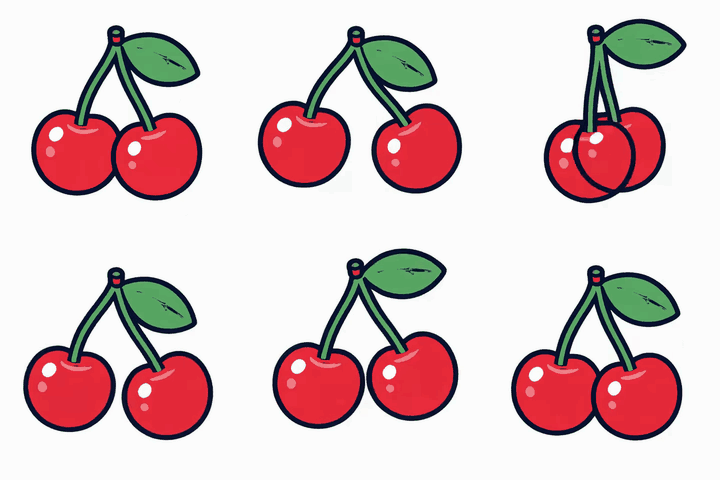
Classic top and bottom captions
Bold white text with a dark outline stays readable on every frame. Put one line on top and one at the bottom for the classic meme look.
- The text stays in place on every frame.
- An outline keeps it readable on busy backgrounds.
- Keep captions short so they stay legible on small screens.
Match your style
Change the font, colour, size and position to fit a brand, a joke or a reaction. Preview each change before you download.
- Choose the font, colour, size and outline.
- Place the text at the top, bottom or anywhere you drag it.
- Show it for the whole loop or only part of it.
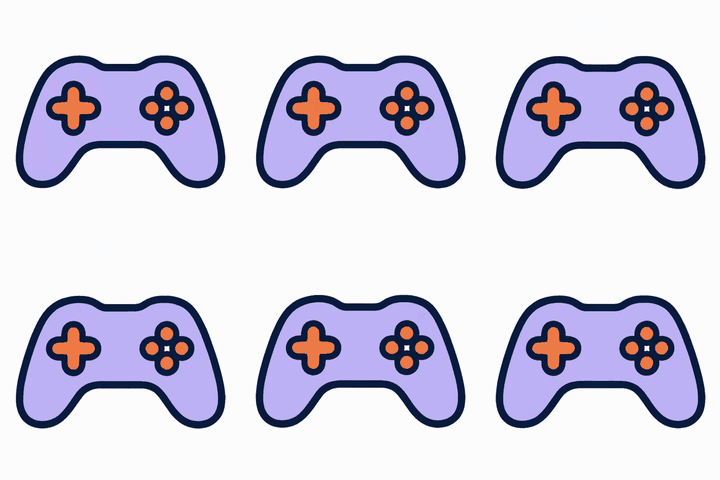
Readable on any frame
Plain text can disappear on bright or busy frames. An outline gives every letter a clear edge.
- Left: no outline. Right: dark outline.
- White text with a black outline works almost everywhere.
- Thicker outlines help on small GIFs.
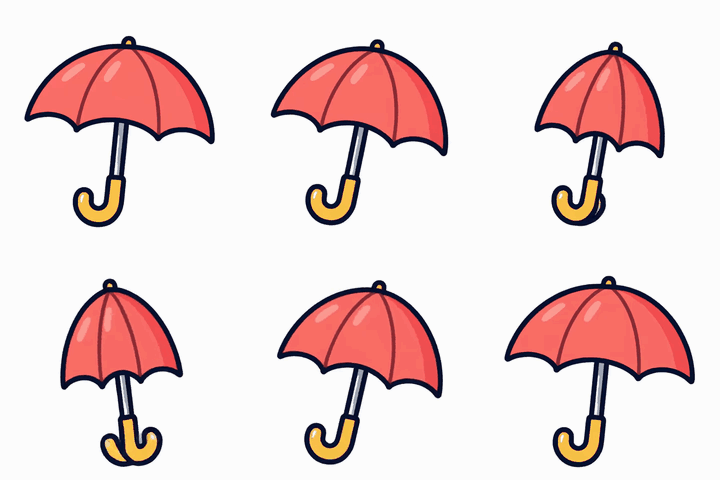
Put the text where it fits
Move the text to the top, the middle, the bottom or any spot that doesn't cover the action.
- Keep faces and key motion clear.
- Corners work well for small labels and watermarks.
- The position is the same on every frame.
Reference
Recommended text styles
| Setting | Recommendation | Why |
|---|---|---|
| Font | Bold sans-serif (e.g. Impact, Arial Black) | Easy to read even on small GIFs |
| Outline | White text with a thick black outline | Readable on both light and dark parts of the image |
| Start and end frames | Line them up with key moments | Better timing, and the text doesn't cover the picture the whole time |
Tips
Common meme text layouts
Top / bottom caption
Text at the top or bottom of the image in bold white with a black outline: the classic meme layout.
Speech bubble
Give the text a rounded background box. Works well for close-ups of people or animals.
Frequently asked questions
Can I add more than one text layer?
Yes. Each text layer has its own style, position and start and end frames.
Will the text cover the picture?
You can drag the text anywhere, make it smaller, or show it on only some of the frames.
Does adding text change the frame rate?
No. Frame delays and the loop count stay exactly as they were.
Do I need to pay or install a plugin?
No. It works right in the browser, it's free, and there's nothing to install.