
How to Resize a GIF on GIF Resizer: A Practical Walkthrough
Resize an animated GIF by percentage or exact pixels, keep its proportions, preview changes, and download the result. Includes a real flower GIF size comparison.
If an animated GIF is too large for a message, profile, or web page, start with its pixel dimensions. On the GIF Resizer home page, you can upload a GIF, choose a percentage or exact width and height, preview the new dimensions, and save another GIF. The original file stays on your device; the conversion runs in your browser.
A concrete example: one flower, three sizes
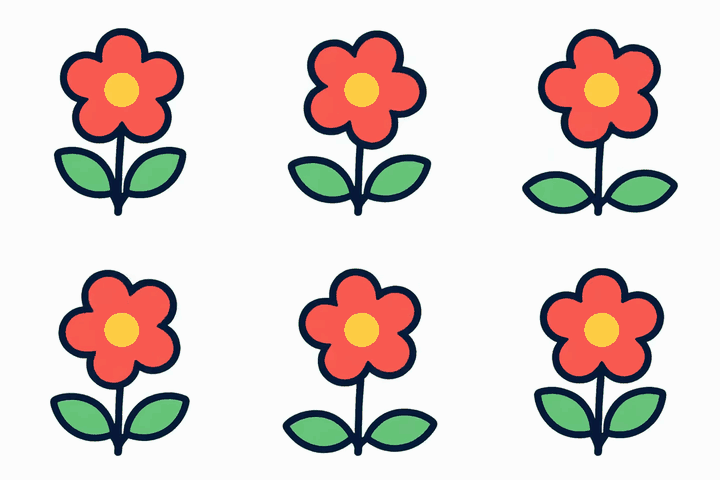
These are three GIF files from this site's example assets. They show the same flower at three widths. Their file sizes are the sizes of those specific files, not a promise about every GIF you upload.
- Original flower: 240 × 240 px, 431,692 bytes (about 422 KiB).
- Half-width flower: 120 × 120 px, 162,470 bytes (about 159 KiB).
- Quarter-width flower: 60 × 60 px, 68,602 bytes (about 67 KiB).


The 120 px file is about 62% smaller by bytes than the 240 px file; the 60 px file is about 84% smaller. Smaller dimensions often help, but GIF size also depends on frame count, colors, and animation complexity. Judge your own download by its displayed output size.
Resize by percentage
- Open the home page and click the upload area, or drag a
.giffile onto it. Choose an animated GIF, such as the 240 px flower above after saving it to your device. - The tool shows the file name, original dimensions, and a side-by-side preview. Leave By percentage selected.
- Move the slider to 50%. For a 240 px wide source, the target width becomes 120 px; the height scales by the same factor. Use 25% for a 60 px target.
- Check the target dimensions above the preview. Click Resize GIF. The tool processes the file and downloads a name ending in
-resized.gif. - Look at the generated size shown beside the button and open the downloaded GIF to check readability and animation. If it is too small to see clearly, try a larger percentage.
The slider supports 10% through 500%. Enlarging a small GIF gives it more pixels but does not restore detail that is absent from the source.
Set an exact pixel width
Choose By pixels if you have a width requirement, such as a 160 px icon. Enter 160 in the width field. The lock icon is on by default, so the height changes automatically to preserve the source proportions. The formula is new height = original height × 160 ÷ original width, rounded to a whole pixel. For a 240 × 240 GIF, that produces 160 × 160. For a 240 × 120 GIF, it produces 160 × 80.
You can unlock the width-height ratio and enter both dimensions independently, but that may stretch or squash the artwork. If you need a different shape without distortion, use the GIF crop tool to cut the frame instead.
Rotate, flip, and check before saving
The same panel has Rotate left, Rotate right, Flip horizontal, and Flip vertical controls. The preview reflects these choices. A quarter-turn also swaps the displayed output width and height: a 240 × 120 GIF becomes 120 × 240 after a 90° rotation. Click Resize GIF again after changing a setting to create a new output; simply changing the preview does not update an earlier download.
The upload accepts GIF files up to 30 MB. Very large source or output dimensions can be rejected to keep browser processing within safe limits. For a big animation, try a smaller percentage first. If your goal is chiefly a tighter file-size limit, try the Discord GIF compressor, which also adjusts frames and colors.